

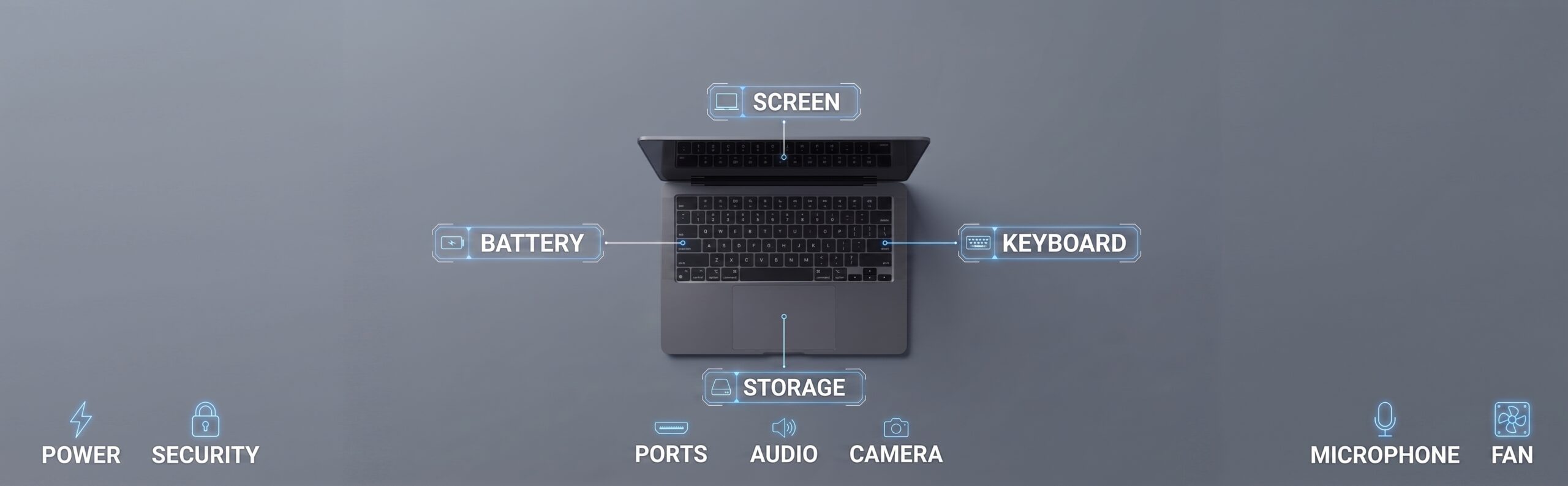
Buying a used laptop can be a great way to get better specifications at a lower price. However, unlike buying a new device, you need to carefully inspect the laptop’s condition, performance, battery, display, and hardware before making a decision.
Whether you’re a student, professional, gamer, or simply looking for an affordable laptop, knowing how to check a used laptop before buying it can help you avoid unexpected repair costs and make a smarter purchase.
This guide covers the most important things to check when buying a second-hand laptop.
How to Check a Used Laptop Before Buying It
Before paying for a used laptop, inspect both its physical condition and technical performance. A laptop may look perfectly fine externally while having battery, storage, overheating, or display issues.
Use this checklist to evaluate the device:
| What to Check | What to Look For |
| Physical condition | Cracks, dents, loose hinges |
| Screen | Dead pixels, lines, brightness issues |
| Keyboard | Missing or unresponsive keys |
| Touchpad | Smooth and accurate movement |
| Battery | Battery health and charging |
| Storage | SSD/HDD health and capacity |
| RAM | Correct capacity and performance |
| Processor | Model and generation |
| Ports | USB, HDMI, audio, charging port |
| Wi-Fi & Bluetooth | Stable connections |
| Camera & microphone | Working properly |
| Speakers | Clear sound without distortion |
| Cooling | Excessive heat or fan noise |
| Operating system | Genuine and functioning properly |
1. Check the Laptop’s Physical Condition
Start with a visual inspection.
Look carefully at the laptop’s:
- Screen frame
- Body
- Keyboard
- Touchpad
- Hinges
- Charging port
- Bottom panel
Small scratches are normal for a used laptop, but cracks, severely damaged hinges, bent panels, or loose components could indicate previous accidents or improper handling.
Check the Hinges
Open and close the laptop several times.
The hinges should feel firm without excessive movement, cracking sounds, or resistance. Damaged hinges can be expensive to repair.
2. Test the Screen
The display is one of the most important components to inspect.
Look for:
- Dead or stuck pixels
- Flickering
- Vertical or horizontal lines
- Uneven brightness
- Discoloration
- Backlight bleeding
- Cracks
Open a few different backgrounds or videos to make display problems easier to spot.
Also check the screen at different brightness levels.
3. Test the Keyboard and Touchpad
Open a text editor and test every key.
Make sure there are no keys that:
- Don’t respond
- Require excessive pressure
- Repeat unexpectedly
- Feel significantly different from the others
Move your finger across the touchpad and test clicking, scrolling, and gestures if supported.
If the laptop has a fingerprint reader, test that as well.
4. Check Battery Health
Battery condition is particularly important when buying a used laptop.
A laptop can still work normally while having a significantly degraded battery.
Check:
- Battery health
- Charging speed
- Battery percentage
- Whether it loses charge unusually quickly
- Whether it works without the charger
On Windows laptops, you can generate a battery report through the operating system. On MacBooks, check the battery’s condition and cycle count through the system settings.
A battery that requires replacement should be considered when evaluating the overall price.
5. Check the Processor, RAM, and Storage
Don’t rely only on what the seller tells you.
Verify the actual specifications from the laptop itself.
Check:
Processor
Confirm the exact processor model and generation.
RAM
Check how much RAM is installed and whether it matches the advertised specifications.
Storage
Verify:
- SSD or HDD
- Storage capacity
- Available space
- Drive health
An SSD generally provides significantly faster performance than an older mechanical hard drive.
6. Check Laptop Performance
Use the laptop for several minutes before buying it.
Open multiple applications, browse several websites, play a video, and perform tasks similar to how you intend to use the device.
Pay attention to:
- Slow startup
- Application freezes
- Unexpected shutdowns
- Excessive fan noise
- Overheating
- System lag
For gaming or demanding work, test the laptop under a heavier workload if possible.
7. Check the Laptop’s Ports and Connectivity
Test every available port.
Depending on the laptop, this may include:
- USB-A
- USB-C
- HDMI
- Headphone jack
- SD card reader
- Ethernet
- Charging port
Also test Wi-Fi and Bluetooth to make sure they connect normally.
A damaged port can be inconvenient and costly to replace.
8. Test the Camera, Microphone, and Speakers
These components are easy to overlook.
Open the camera application and check the image quality.
Then test:
- Microphone
- Speakers
- Headphone output
Make sure there is no significant distortion, static, or unusually low volume.
This is especially important if you plan to use the laptop for online meetings, university classes, or remote work.
9. Check for Overheating
Overheating can indicate blocked vents, dust buildup, a failing cooling system, or thermal issues.
During normal use, listen for unusually loud fans and check whether the laptop becomes excessively hot.
A small amount of warmth is normal, particularly under heavy workloads, but excessive heat or sudden performance drops deserve further investigation.
10. Verify the Operating System
Make sure the operating system is activated and functioning normally.
Check:
- Windows activation, if applicable
- macOS version and compatibility
- User accounts
- System updates
- Device drivers
The laptop should also be reset properly before ownership changes.
If the seller has not removed their account, ask them to do so before completing the purchase.
11. Check the Serial Number
The serial number can help verify information about the device.
Depending on the manufacturer, you may be able to check:
- Warranty status
- Original specifications
- Model information
- Support eligibility
Make sure the serial number on the laptop matches the information provided by the seller where applicable.
12. Check for Signs of Previous Repairs
A used laptop may have had components replaced.
Look for signs such as:
- Damaged screws
- Gaps around the chassis
- Mismatched components
- Loose panels
- Different keyboard or display appearance
Repairs aren’t necessarily a problem, but it’s useful to know what has been replaced and why.
For expensive laptops, consider having the device inspected by a qualified technician before purchasing.
Used Laptop Buying Checklist
Before making the final payment, make sure you’ve checked:
- Physical condition
- Screen
- Keyboard
- Touchpad
- Battery
- Processor
- RAM
- Storage
- Ports
- Wi-Fi and Bluetooth
- Camera and microphone
- Speakers
- Cooling system
- Operating system
- Serial number
- Previous repairs
What Should You Avoid When Buying a Used Laptop?
Be cautious if the seller:
- Refuses to let you test the laptop
- Cannot provide basic specifications
- Gives inconsistent information
- Pressures you to pay immediately
- Refuses to demonstrate that the device works
- Won’t allow you to check the serial number
- Offers a price that seems unusually low without explanation
A good deal is not necessarily a good purchase if the laptop requires expensive repairs shortly afterward.
How Much Should You Pay for a Used Laptop?
There is no single price for a used laptop because value depends on several factors.
Consider:
- Model
- Processor generation
- RAM
- Storage
- Graphics card
- Screen quality
- Battery condition
- Physical condition
- Age
- Warranty
- Current market demand
Compare several similar listings before deciding whether the asking price is reasonable.
New vs Used Laptop: Which Should You Choose?
A used laptop can provide better specifications for your budget, particularly if you find a well-maintained device.
A new laptop, however, generally offers:
- Full warranty
- New battery
- Lower risk of hidden damage
- Latest hardware
- Longer expected lifespan
If your budget is limited, a carefully inspected used laptop can still be an excellent option.
Final Thoughts
Knowing how to check a used laptop before buying it can help you avoid common problems and make a more confident purchase.
Don’t focus only on the processor or storage capacity. Check the laptop as a complete device, including its physical condition, battery, screen, ports, cooling system, and software.
Most importantly, test the laptop yourself whenever possible and compare multiple options before making your final decision.
Find Used Laptops on dubizzle
Whether you’re searching for a laptop for university, work, gaming, or everyday use, comparing different listings can help you find the right device at the right price.
Browse used laptops on dubizzle, compare specifications, brands, conditions, and prices, and find a laptop that matches your needs and budget.
Leave a Reply
Read Next












Structuring page cleaning, text extraction, and typesetting into an integrated process is crucial, making this building a scanlation process with modern software a great guide for digital comic localization enthusiasts.